
Which Alienware monitor to buy
34-inch ultrawide
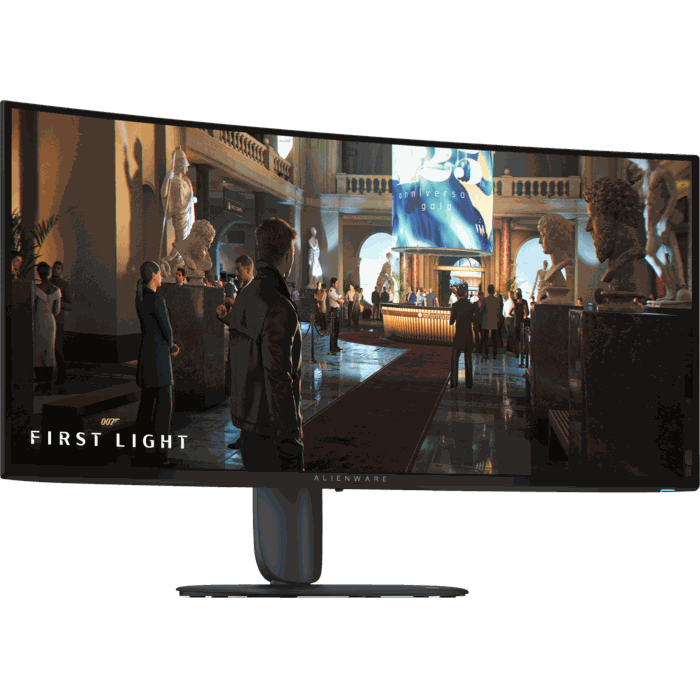 Ultrawide on a budget
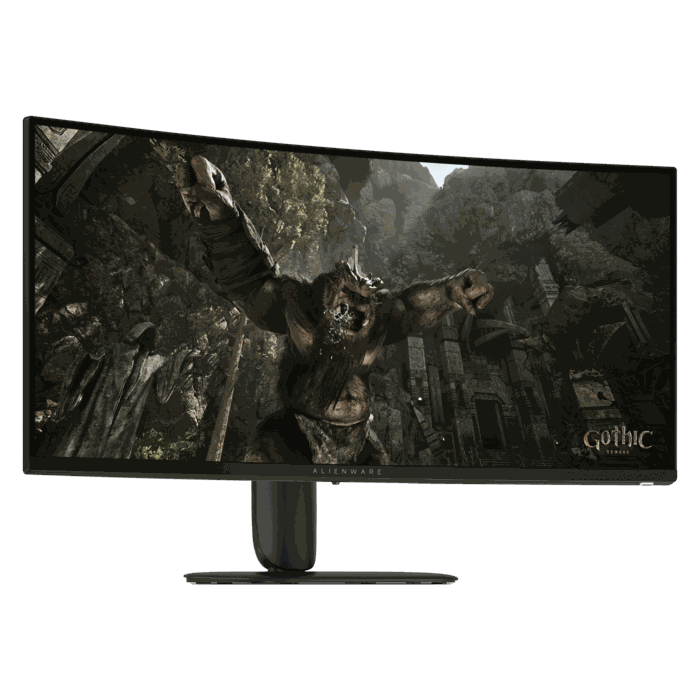 4K on a PC and a console
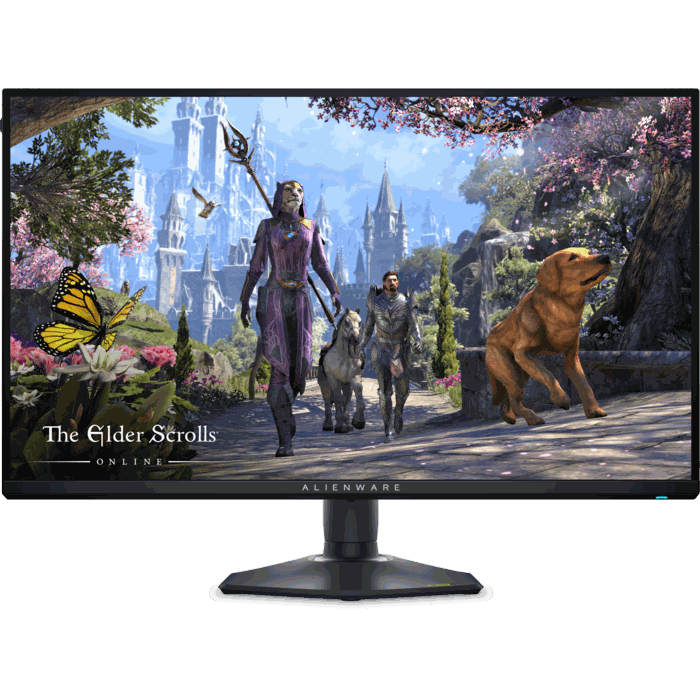 1440p on a budget
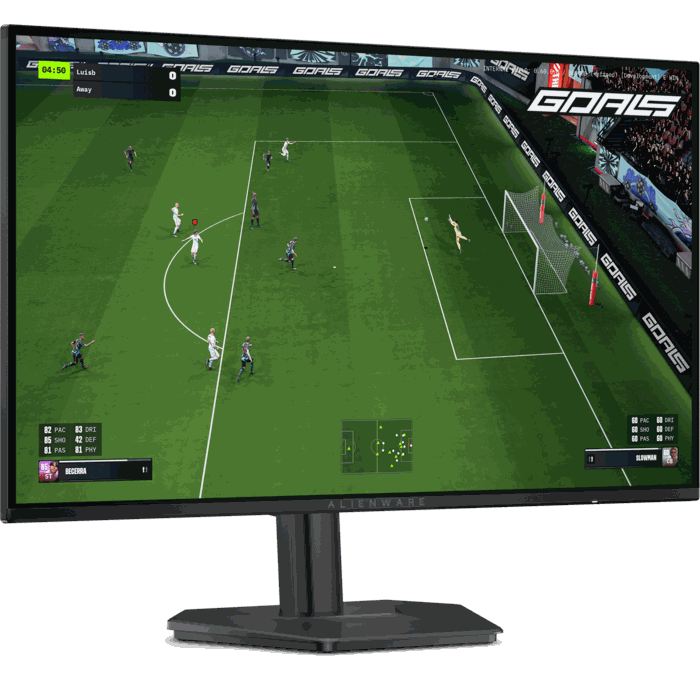
Alienware AW3426DW
The newest QD-OLED ultrawide: 3440×1440 at 280Hz, also over HDMI 2.1, with DisplayHDR True Black 500. Take the 240Hz AW3425DW only when it costs clearly less.
Check Price
Alienware AW3426DWM
The same 3440×1440 at 240Hz on a VA panel with a tighter 1500R curve. Dell rates its contrast at 3000:1; it has no OLED panel, so there is no pixel refresh to schedule.
Check Price
Alienware AW2725QF
A 27-inch IPS panel that runs 4K at 165Hz (180Hz overclocked) or switches to 1080p at 330Hz (360Hz overclocked), with two HDMI 2.1 ports. Sold by Amazon itself.
Check Price
Alienware AW2726DL
The two entry 1440p models are both good buys. This one runs 280Hz over DisplayPort and HDMI 2.1, with no USB ports and no HDR certification. For DisplayHDR 400 and a USB hub, take the AW2725DM below; its HDMI stops at 144Hz.
Check PriceEvery current Alienware monitor compared
| Model | Size | Resolution | Max refresh | Panel | Amazon |
|---|---|---|---|---|---|
| 39-inch | |||||
| AW3926QW | 38.9" curved, 1500R | 5120×2160 | 165Hz (330Hz at 2560×1080) | OLED | No listing found |
| 34-inch ultrawide | |||||
| AW3426DW | 34" curved, 1800R | 3440×1440 | 280Hz | QD-OLED | Check price |
| AW3425DW | 34.2" curved, 1800R | 3440×1440 | 240Hz | QD-OLED | Check price |
| AW3423DWF | 34.18" curved, 1800R | 3440×1440 | 165Hz (HDMI 100Hz) | QD-OLED | Check price |
| AW3423DW | 34.18" curved, 1800R | 3440×1440 | 175Hz (HDMI 100Hz) | QD-OLED | Check price third-party |
| AW3426DWM | 34" curved, 1500R | 3440×1440 | 240Hz | VA | Check price |
| AW3425DWM | 34" curved, 1500R | 3440×1440 | 180Hz | VA | Check price |
| 32-inch | |||||
| AW3226Q | 31.5" flat | 3840×2160 | 165Hz | OLED | Check price |
| AW3225QF | 31.6" curved, 1700R | 3840×2160 | 240Hz | QD-OLED | Third-party only |
| AW3226DM | 31.5" curved, 1500R | 2560×1440 | 240Hz | VA | No listing found |
| AW3225DM | 31.5" curved, 1500R | 2560×1440 | 180Hz (HDMI 144Hz) | VA | Third-party only |
| 27-inch | |||||
| AW2725Q | 26.7" flat | 3840×2160 | 240Hz | QD-OLED | Used or renewed only |
| AW2725QF | 27" flat | 3840×2160 or 1920×1080 | 165Hz (180Hz OC) or 330Hz (360Hz OC) | IPS | Check price |
| AW2725DF | 26.7" flat | 2560×1440 | 360Hz (HDMI 144Hz) | QD-OLED | Third-party only |
| AW2725D | 26.7" flat | 2560×1440 | 280Hz | QD-OLED | No featured offer |
| AW2726DM | 26.5" flat | 2560×1440 | 240Hz (HDMI 120Hz) | QD-OLED | Third-party only |
| AW2726DL | 27" flat | 2560×1440 | 280Hz | IPS | Check price |
| AW2725DM | 27" flat | 2560×1440 | 180Hz (HDMI 144Hz) | Fast IPS | Check price |
| AW2723DF | 27" flat | 2560×1440 | 240Hz (280Hz OC; HDMI 144Hz) | Fast IPS | Check price third-party |
| 25-inch | |||||
| AW2525HM | 24.5" flat | 1920×1080 | 320Hz (HDMI 255Hz) | Fast IPS | Check price |
| AW2524HF | 24.5" flat | 1920×1080 | 480Hz (500Hz OC; HDMI 255Hz) | Fast IPS | Third-party only |
Specs from Dell's product pages. Refresh rates are over DisplayPort; where HDMI tops out lower, the cell says so. OC means the overclocked setting in the monitor menu. "Check price" opens a listing sold by Amazon itself unless it says third-party.
Current models Amazon sells itself
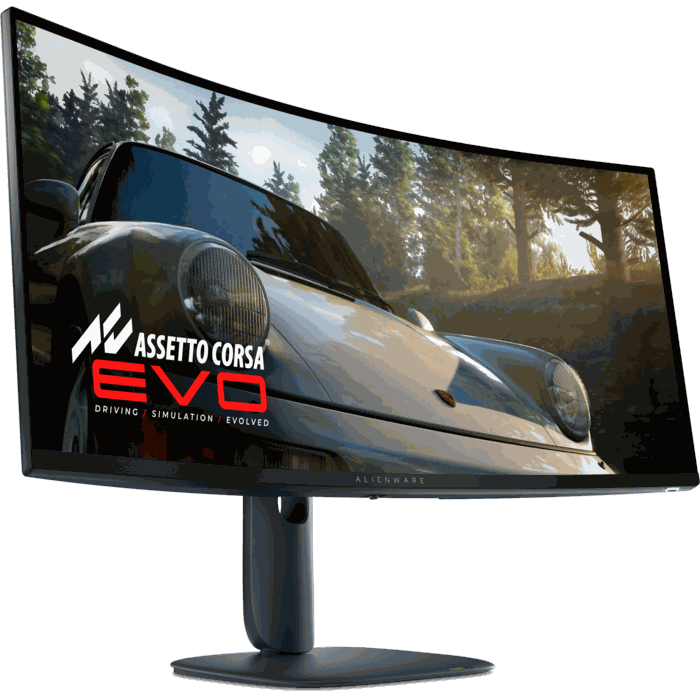
Alienware AW3426DW
The newest 34-inch QD-OLED. Against the AW3425DW it moves from 240Hz to 280Hz, from DisplayHDR True Black 400 to True Black 500, and adds Dolby Vision; Dell rates peak brightness at 1300 nits against 1000. Both HDMI 2.1 ports run the full 280Hz, so a console or a second PC gets the same panel. Dell covers OLED burn-in for three years.
- 3440×1440, 280Hz, 1800R curve
- 2 × HDMI 2.1, 1 × DisplayPort 1.4, USB-C downstream
- FreeSync Premium Pro, G-Sync Compatible
Alienware AW3425DW
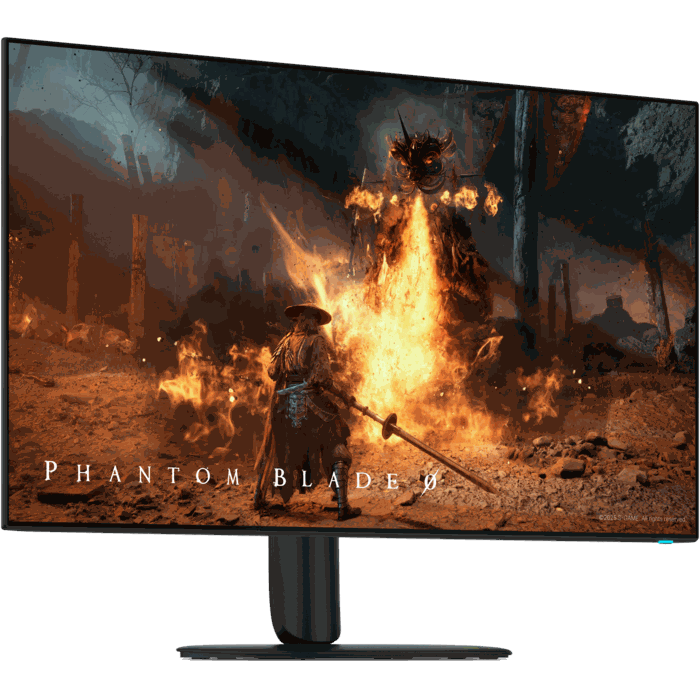
The previous model, still sold by Amazon. It runs 240Hz over DisplayPort and both HDMI 2.1 ports, with DisplayHDR True Black 400. It only makes sense at a clear discount to the AW3426DW.
- 3440×1440, 240Hz, 1800R curve
- 2 × HDMI 2.1, 1 × DisplayPort 1.4, USB-C downstream
- FreeSync Premium Pro, G-Sync Compatible
Alienware AW3226Q
A flat 31.5-inch 4K OLED at 165Hz, sold by Amazon itself. The curved QD-OLED AW3225QF runs 240Hz, but the Amazon listings we found for it were all third-party. Dell's warranty includes OLED burn-in.
- 3840×2160, 165Hz, flat
- 2 × HDMI 2.1, 1 × DisplayPort 1.4
- DisplayHDR True Black 400, Dolby Vision
Alienware AW3426DWM
The budget 34-inch ultrawide: 3440×1440 at 240Hz on a VA panel with a 1500R curve. HDR is DisplayHDR 400 with a 450-nit peak, against 1000 to 1300 nits on the QD-OLED models. Dell lists FreeSync Premium but not G-Sync Compatible.
- 3440×1440, 240Hz, 1500R curve
- 2 × HDMI 2.1, 1 × DisplayPort 1.4, USB-C downstream
- 3000:1 contrast
Alienware AW2725QF
The cheapest 4K Alienware that Amazon sells itself. A dual-resolution mode switches the panel to 1080p at 330Hz (360Hz overclocked) for shooters, and both HDMI ports are 2.1, one with eARC for a soundbar. It is an IPS panel, so the burn-in and pixel refresh questions in the FAQ below don't apply.
- 3840×2160 at 165Hz (180Hz OC), 1920×1080 at 330Hz (360Hz OC)
- 2 × HDMI 2.1, 1 × DisplayPort 1.4, USB hub
- DisplayHDR 600, G-Sync Compatible
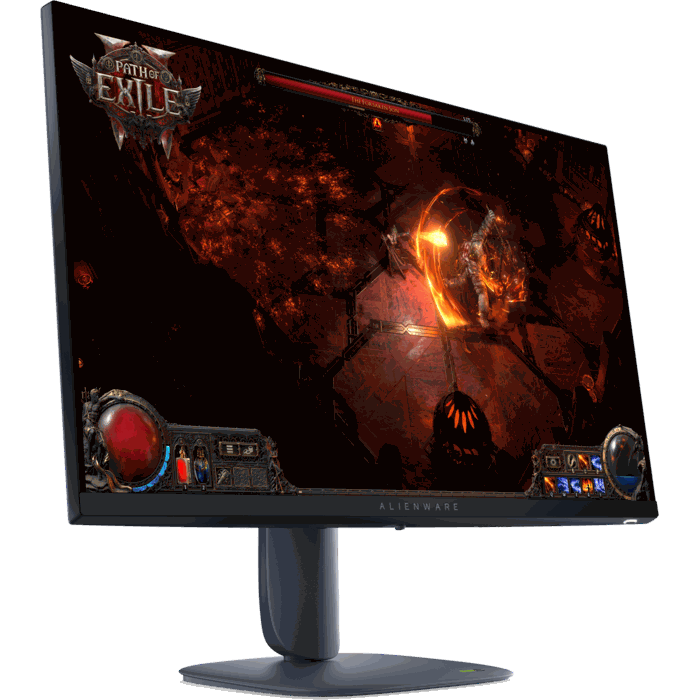
Alienware AW2726DL
The faster of the two entry 1440p monitors: 280Hz over DisplayPort or HDMI 2.1. Dell saves the money elsewhere: one HDMI port, no USB, HDR10 without a VESA certification, and Dell's spec sheet lists it as not flicker-free.
- 2560×1440, 280Hz
- 1 × HDMI 2.1, 1 × DisplayPort 1.4
- FreeSync Premium
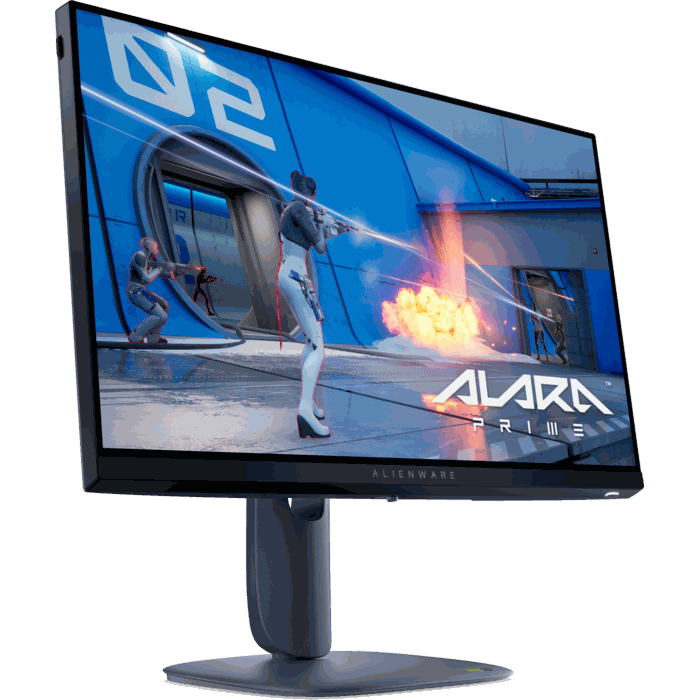
Alienware AW2725DM
The other entry 1440p model runs 180Hz. In return it has DisplayHDR 400, two HDMI ports and a USB hub. HDMI tops out at 144Hz, so connect a PC over DisplayPort.
- 2560×1440, 180Hz (HDMI 144Hz)
- 2 × HDMI 2.1, 1 × DisplayPort 1.4, 2 × USB-A
- DisplayHDR 400
Alienware AW2525HM
A 24.5-inch 1080p Fast IPS panel at 320Hz over DisplayPort, sold by Amazon. For 480Hz there is the AW2524HF, which Amazon offers only through third-party sellers.
- 1920×1080, 320Hz (HDMI 255Hz)
- 2 × HDMI 2.1, 1 × DisplayPort 1.4
- FreeSync Premium, G-Sync Compatible
Older models still on Amazon
Dell no longer stocks these three. They still turn up new on Amazon, the AW3423DWF from Amazon itself and the other two from third-party sellers. If you buy from a marketplace seller, Dell's warranty needs an ownership transfer, so keep the receipt.

Alienware AW3423DWF
The first-generation 34-inch QD-OLED panel at 3440×1440 and 165Hz over DisplayPort, with DisplayHDR True Black 400 and FreeSync Premium Pro. Its one HDMI port is 2.0 and stops at 100Hz. Dell has sold out, and Amazon still sells it new. Buy it only if it costs clearly less than the AW3425DW.
Check Price
Alienware AW3423DW
The original 34-inch QD-OLED with Nvidia's G-Sync Ultimate module: 3440×1440 at 175Hz over DisplayPort, 100Hz over HDMI 2.0, in Lunar Light white. Dell lists it as out of stock, and on Amazon only third-party sellers offer it.
Check Price
Alienware AW2723DF
A 27-inch 2560×1440 Fast IPS panel at 240Hz over DisplayPort (280Hz overclocked) and 144Hz over HDMI 2.0, with G-Sync Compatible and FreeSync Premium Pro. Dell lists it as out of stock, and Amazon offers it through third-party sellers. The AW2725DM and AW2726DL are the current 27-inch IPS models.
Check PriceConnecting it to an Alienware desktop or laptop
Aurora and Area-51 desktops. Plug the monitor into the graphics card. On the Aurora ACT1250 it is the only video output; the Area-51 AAT2250 adds two Thunderbolt 4 ports with DisplayPort. Dell's Aurora manual lists three DisplayPort 2.1b ports and one HDMI 2.1b port on every RTX 50-series card it covers, enough for every monitor on this page at its full refresh rate. Our desktop guide picks an Aurora with an RTX 5070 Ti as the best value and the RTX 5080 for 4K in the smaller tower.
Alienware laptops. On the 16 Aurora, Dell wires the HDMI 2.1 port straight to the Nvidia graphics chip. On the 16 Area-51, Dell recommends the two USB-C ports and warns that HDMI can lower the frame rate; G-Sync works on either. Only the 39-inch AW3926QW takes video over USB-C, so for the other monitors use a USB-C to DisplayPort cable. Compare the 16 Aurora and Area-51 laptops before you pick a screen to run them on.
HDMI limits. On the AW2725DF, AW2726DM, AW2725DM, AW2525HM and the older 34-inch DW and DWF, HDMI runs below the DisplayPort refresh rate (see the table). Connect a PC over DisplayPort and keep HDMI for a console.
Monitor software. Alienware monitors are set up from the on-screen menu or from Alienware Command Center 6.x, which only sees the monitor when its USB upstream cable is connected to the PC. The AW2726DM and AW2726DL have no USB port, so they are set from the menu alone. Several models also work with Dell Display and Peripheral Manager for Windows.
Alienware monitor FAQ
Do Alienware OLED monitors get burn-in, and does the warranty cover it?
They can. In Monitors Unboxed's long-term test of another brand's QD-OLED, deliberately harsh desktop use left burn-in barely visible after a year (about 3,000 hours) and clearly visible around the taskbar after about 8,000 hours.
The AW3423DW, AW3423DWF, AW3425DW and AW2725DF are sold with a 3-year warranty that includes burn-in, but the terms differ by model and region, so check the exact model page before you buy. To slow it down, auto-hide the taskbar and let the monitor run its pixel refresh.
Why does my Alienware OLED keep asking to run a pixel refresh?
That is the panel maintenance that limits burn-in. After 4 hours of use the monitor shows a reminder; if you ignore it, the refresh runs on its own the next time the monitor goes into standby. It takes about 7 minutes, with the screen off and the power light slowly blinking green. Don't unplug it during the cycle.
On current firmware you can switch off the reminder under Others > OLED Panel Maintenance, though Dell advises against skipping the refresh itself.
AW3423DW or AW3423DWF: which should I buy?
Both use the same first-generation 34-inch QD-OLED panel. The DW (check price) has Nvidia's G-Sync Ultimate module, runs at 175Hz and is slightly brighter in HDR. The DWF (check price) replaces the module with a standard scaler: 165Hz over DisplayPort, FreeSync Premium Pro with G-Sync Compatible certification, a second DisplayPort input and a console mode.
Buy whichever costs less on the day; the difference you will notice in games is 10Hz.
Is the AW3423DWF still worth buying in 2026?
At a sale price, yes (check price). The AW3425DW adds a second-generation panel, 240Hz, two HDMI 2.1 ports and a tighter 1800R curve. The 2026 AW3426DW goes to 280Hz and is brighter: Windows Central measured about 330 nits in SDR against about 252 for the AW3425DW.
Pay for a newer model if you play fast shooters or connect a console. For single-player games, the DWF on sale is the better deal.
Why does my OLED flicker in dark scenes and loading screens?
It's VRR flicker, which affects OLED panels in general: when the frame rate swings, gamma shifts and dark greys visibly pulse, most often on loading screens and in menus.
Update the firmware first; Dell's AW3423DW firmware notes list a fix for occasional flicker. Then cap the frame rate a few fps below the refresh rate so it swings less. If one game's menus still flicker, turn off G-Sync or FreeSync for that game.
Is the fan loud?
Both 34-inch QD-OLED models have a cooling fan, the DWF included. Its speed follows panel and room temperature, and it can keep running while the monitor sleeps, for example during a pixel refresh. Dell says the DW's fans are designed to stay under 32 dB. Next to a gaming PC under load that is easy to miss; in a silent room you may hear it.
Is a QD-OLED monitor good for text and work?
For games and video, yes. For a full day of text it's a compromise. QD-OLED subpixels sit in a triangle, so small dark text on a white background shows faint colour fringes, and a 34-inch 3440×1440 screen has the same pixel density (about 110 PPI) as a 27-inch 1440p one. ClearType tuning helps a little.
QD-OLED also has no polarizer, so blacks turn dark grey in a bright room. If you write or code all day, the 27-inch 4K AW2725Q shows noticeably sharper text.
Does it work with PS5 and Xbox?
Yes, with limits. The AW3423DWF's console mode accepts a 4K 60Hz signal and scales it down, but its HDMI 2.0 port tops out at 100Hz, and consoles don't output 21:9, so you get black bars at the sides. The AW3425DW has two HDMI 2.1 ports. The AW2725DF runs 360Hz only over DisplayPort; HDMI stops at 144Hz.
For a console-first setup, the 4K AW2725Q with HDMI 2.1 is the better fit.
Why does HDR look washed out?
On the AW3423DWF, Dell traced washed-out HDR colour on hardware revisions A00–A03 to firmware and fixed it in version M3B104. Check yours under Others > Display Info and update from Dell's support site, then run the Windows HDR Calibration app.
Expect full-screen HDR to look less bright than the box suggests: the 1000-nit figure applies only to small highlights.
A line or dead pixels appeared on my monitor. What now?
Run a manual pixel refresh first (Others > OLED Panel Maintenance). Dell's troubleshooting article for line defects and mura on its OLED monitors starts there, and it clears some of them. If the line stays, contact Dell with the service tag: Advanced Exchange ships a replacement after a remote diagnosis instead of repairing the panel, and the replacement can be refurbished.
If you are still inside Amazon's return window, choose your route before you start: after a Dell exchange the serial number no longer matches your Amazon order, and Amazon can refuse the return.